Mar 2, 2026
Free, private social media with Obsidian and Dropbox
Skippable backstory
My husband and I are separated by an ocean, opposite time zones, visa bureaucracy, five no-fly zones and possibly WWIII while we anticipate the arrival of our first child. It's been challenging and sometimes feels like threading a needle in a hurricane. But we're staying grateful and making the best of it.
We both love philosophy and literature. Near the end of his time in the US he boxed up a quarter-ton of his books and sent them from New York to India by cargo ship (they made it). Writings make frequent appearances in our calls and texts, and tend to get lost upstream our river of messages.
This Valentine's Day I wanted to gift him something special from afar that could help us stay close.
A private, digital shared space
I ended up using free (I'm cheap*) tools Obsidian and Dropbox to piece together a private, digital "third space" for us to asynchronously meet, curate and discuss our shared library from anywhere.

We named the shared space "selections", after the beloved Select Book Shop.
The space includes a virtual bookshelf of writings we've recently discussed, the thinkers behind them, and our commentary, synced in near real-time with end-to-end encryption and no cargo ships.
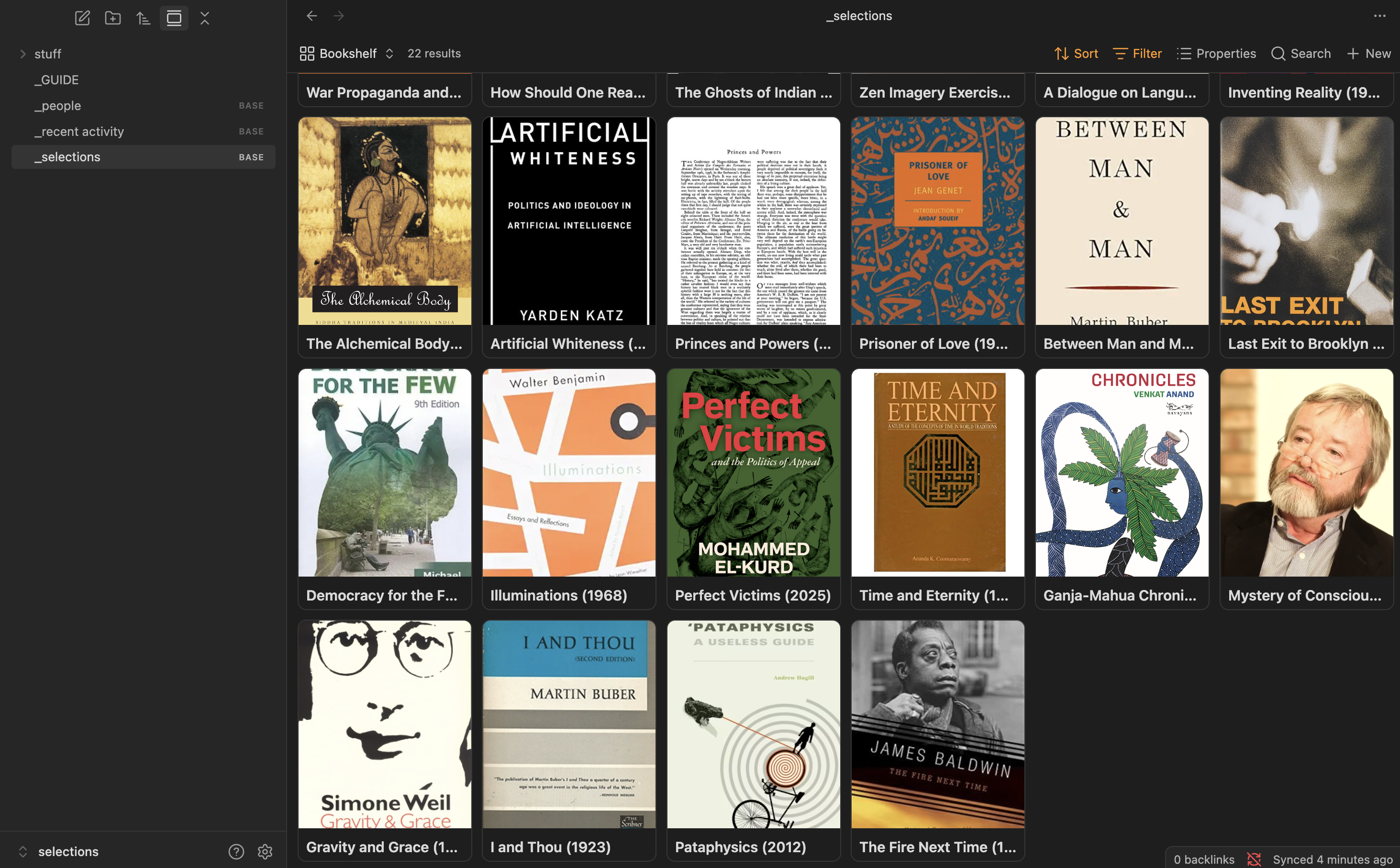
It's easy to access from any device - a laptop at home or a phone on the go. This virtual hangout space turned out to be a great connector for us.
I thought others might enjoy learning how to set up their own private, free digital gathering space for a handful of friends.
Why Obsidian and Dropbox?
At first I started building an app from scratch, hosted on a Raspberry Pi and using Tailscale tunneling for privacy.
Halfway through I realized it was overkill and switched to Obsidian to take advantage of its powerful features:
- Obsidian Bases - turns notes into a dynamic database
- wikilinks
- sync
- cross-device compatibility
I ditched the Raspberry Pi in favor of free cloud storage (Dropbox) with the Remotely Sync plugin, which encrypts data in transit and at rest, and doesn’t require much technical know-how for users to connect.
Sidenote - Obsidian has a wonderful (paid) feature that enables collaboration on shared vaults for up to 20 users, with E2E encryption, version history, and merge conflict resolution. I recommend that if you can afford $4 per user per month.
If you want my hacky free solution, proceed.
Setup
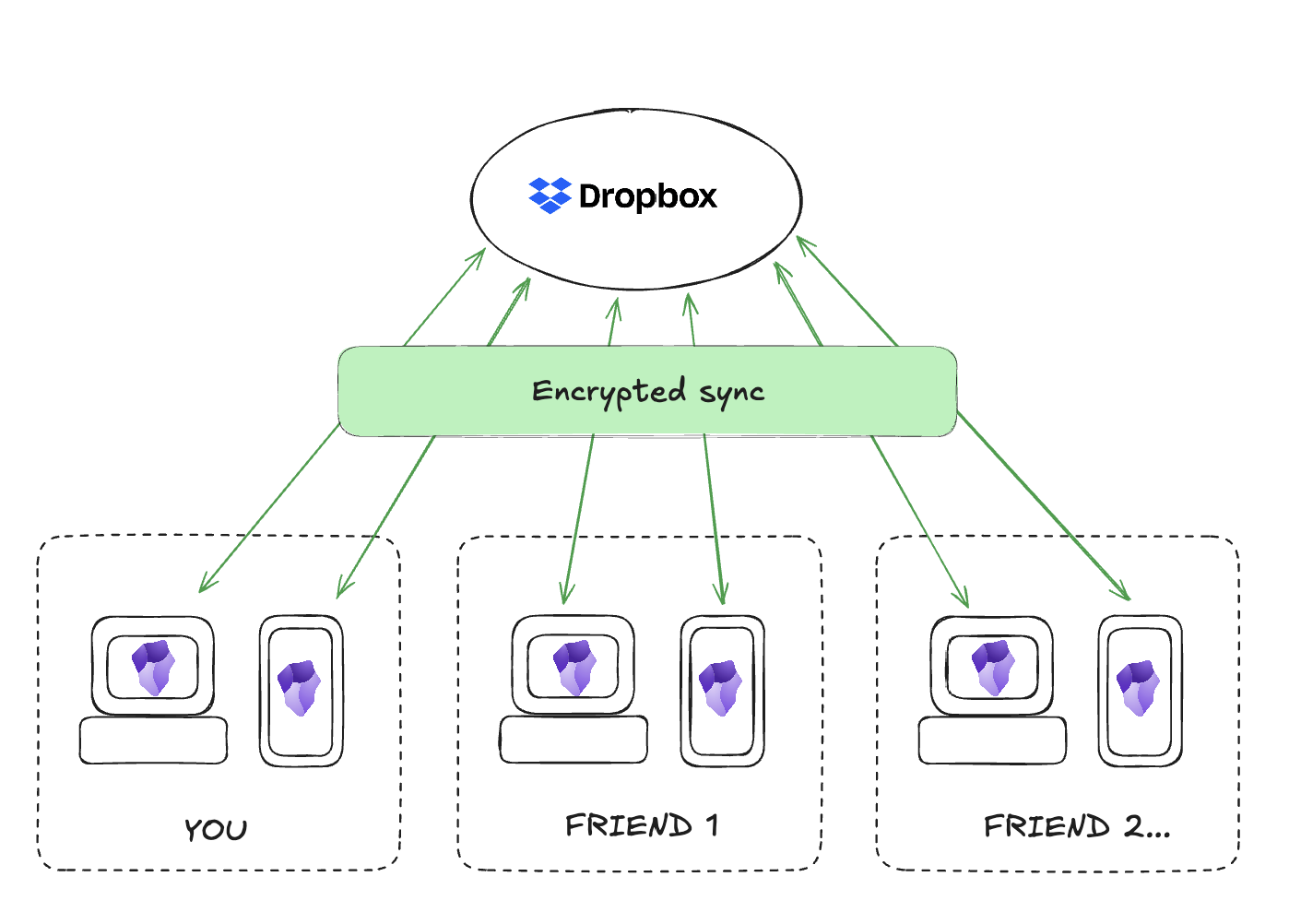
What you'll need
Everything is free!
- Obsidian
- Obsidian plugin: "Remotely Sync"
- Dropbox (free account = 2GB storage)
1. Setup storage
- Create a free Dropbox account
They make the free plan a little hard to find - scroll down.
Note: your Dropbox account credentials will need to be shared with anyone you invite to your private digital gathering space in order for them to sync.
I recommend using email + password signup instead of OAuth, and preferrably with a valid alt email.
2. Create an empty Obsidian Vault
If you're new to Obsidian, a "vault" is just a folder on your computer, with some special hidden files Obsidian adds to enhance your experience.
I recommend starting this on a computer, as opposed to a phone. You can sync to mobile later if you like.
- Install Obsidian
- In Obsidian, create a new local vault, wherever you like on your computer, and give it a name you'll share
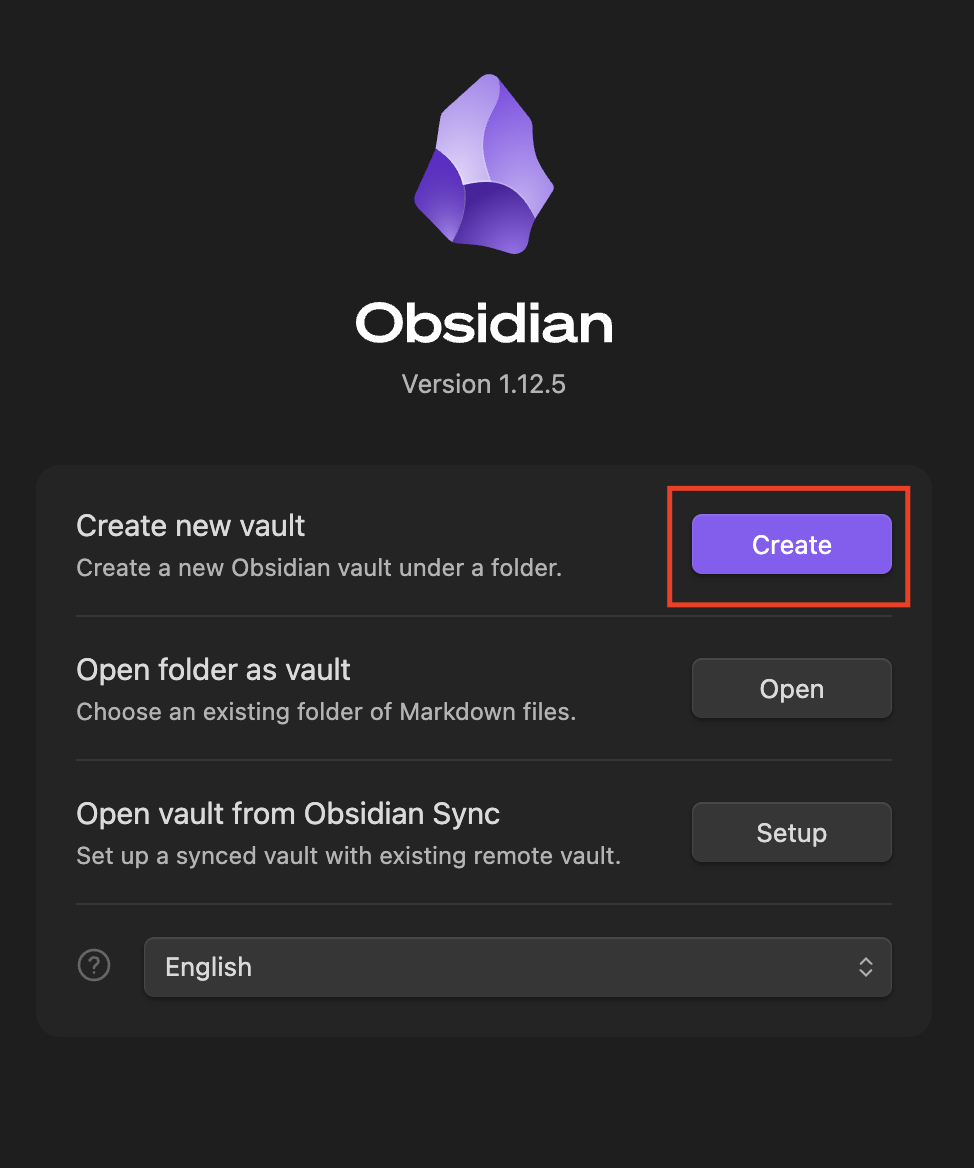
- Enable community plugins (Settings > Community Plugins > Turn on Community Plugins)
Keep the vault empty and continue to the next step.
3. Setup sync
- Install the "Remotely Sync" plugin (Settings > Community Plugins > Browse)
- In the Remotely Sync plugin settings, configure as follows:
a. Choose remote service > "Dropbox"
b. Auth:
YOUR_DROPBOX_ACCOUNT_EMAIL/YOUR_DROPBOX_ACCOUNT_PASSWORDc. Set an encryption password (jot this down!! you'll need to share it with friends)
d. Enable "Syncing _ files or folders" to ensure including underscored files
e. Sync settings:
- Run once on startup > after 10 seconds
- Sync on save > after 5 secs
- Schedule autorun > every 10 mins
- (optional if you want reallllly real-timeish sync) On remote changes > every 1 min
4. Sync your first file
Test your Dropbox sync by creating a _GUIDE.md file for your friends in your Obsidian vault and pasting in the content below.
Replace the CAPITAL_VALUES with your values.
## Connecting more devices

1. install Obsidian on phone/desktop
2. create EMPTY vault called YOUR_VAULT_NAME, store on device
3. install and enable "Remotely Sync" plugin
4. Remotely Sync Plugin settings: Choose remote service > "Dropbox"
5. Auth: YOUR_DROPBOX_ACCOUNT_EMAIL / YOUR_DROPBOX_ACCOUNT PASSWORD
6. Encryption password > PASSWORD_HINT
7. enable "Syncing \_ files or folders" to ensure including underscored files
8. Sync settings:
   1. Run once on startup > after 10 seconds
   2. Sync on save > after 5 secs
   3. Schedule autorun > every 10 mins
   4. (optional if you want reallllly real-timeish) On remote changes > every 1 min
You can include password hints if you dare.
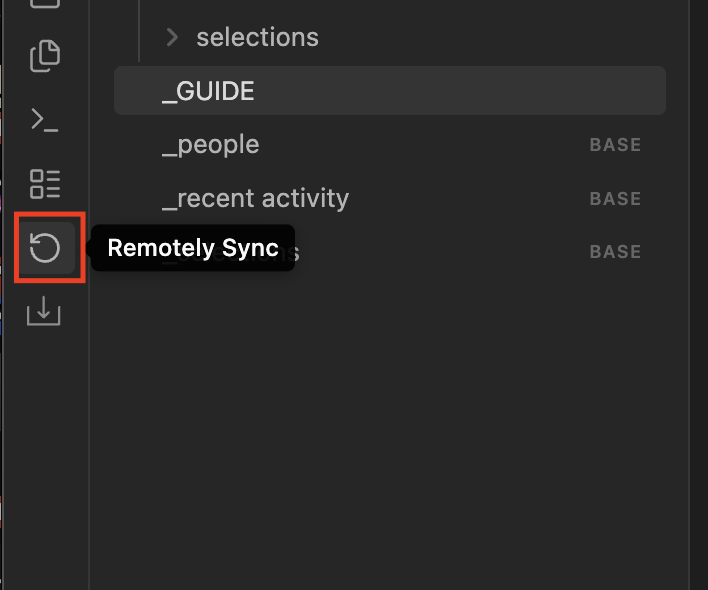
Hopefully the sync automatically runs after you create and update this file. But just to be safe, run a manual sync by clicking the "Remotely Sync" icon in the left ribbon
Check Dropbox
Now head over to your Dropbox dashboard. The Remotely Sync plugin should have created a directory "Apps" > "Remotely Secure"
You should see a file inside with a ciphertext (scrambled) filename, and content which can't be read in the browser. That's a good sign - it means the encryption worked and your filename and content is relatively private.
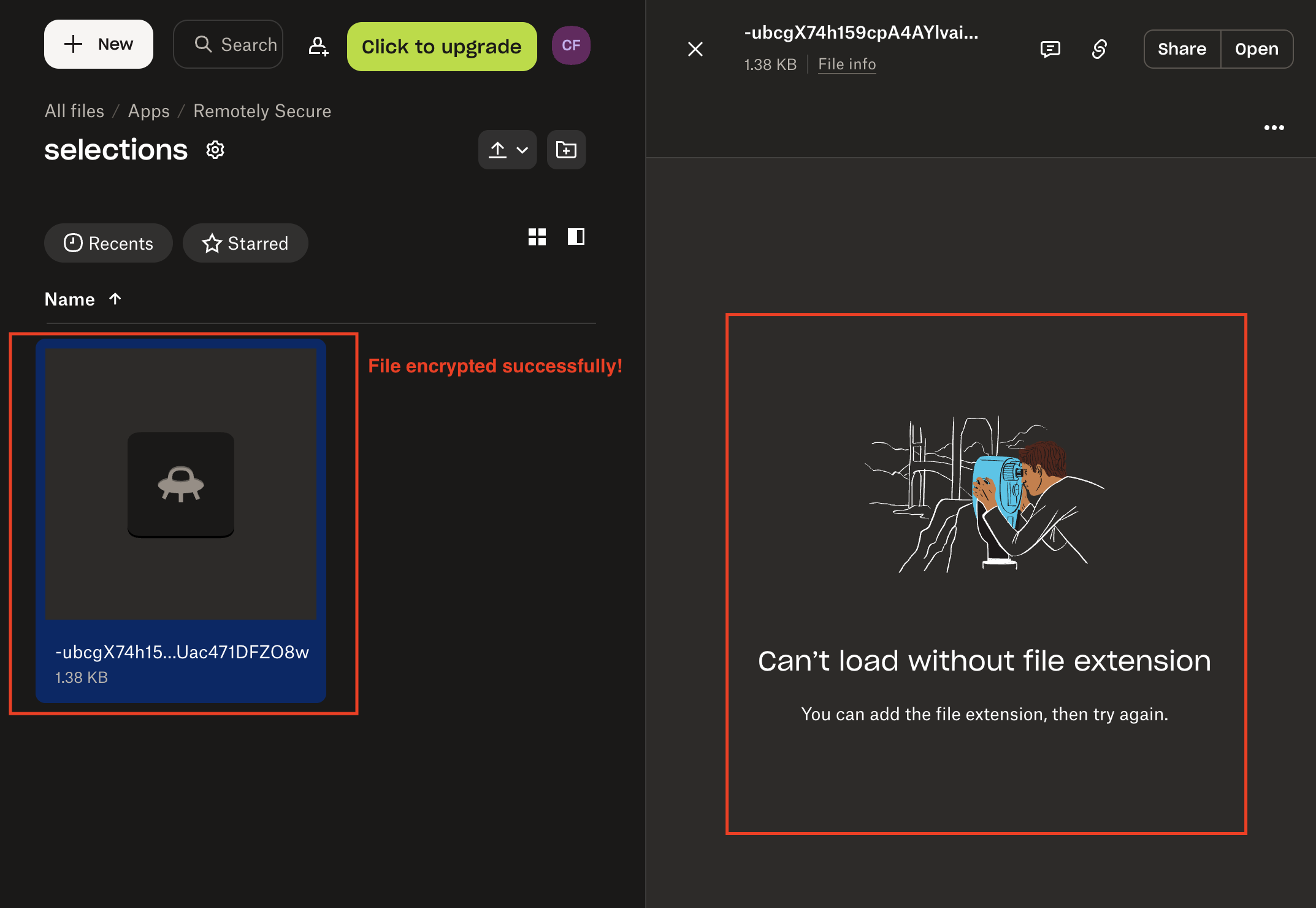
5. (Optional) Set up a "Recent Activity" view in your vault
You could stop here and start sharing your synced vault with your friends. But to enhance the "social media" feel, I recommend adding a view to show recent activity so you know who is doing what lately.
The idea is someone can make a new note, tag it with their name like #claire, and it shows up as recent activity
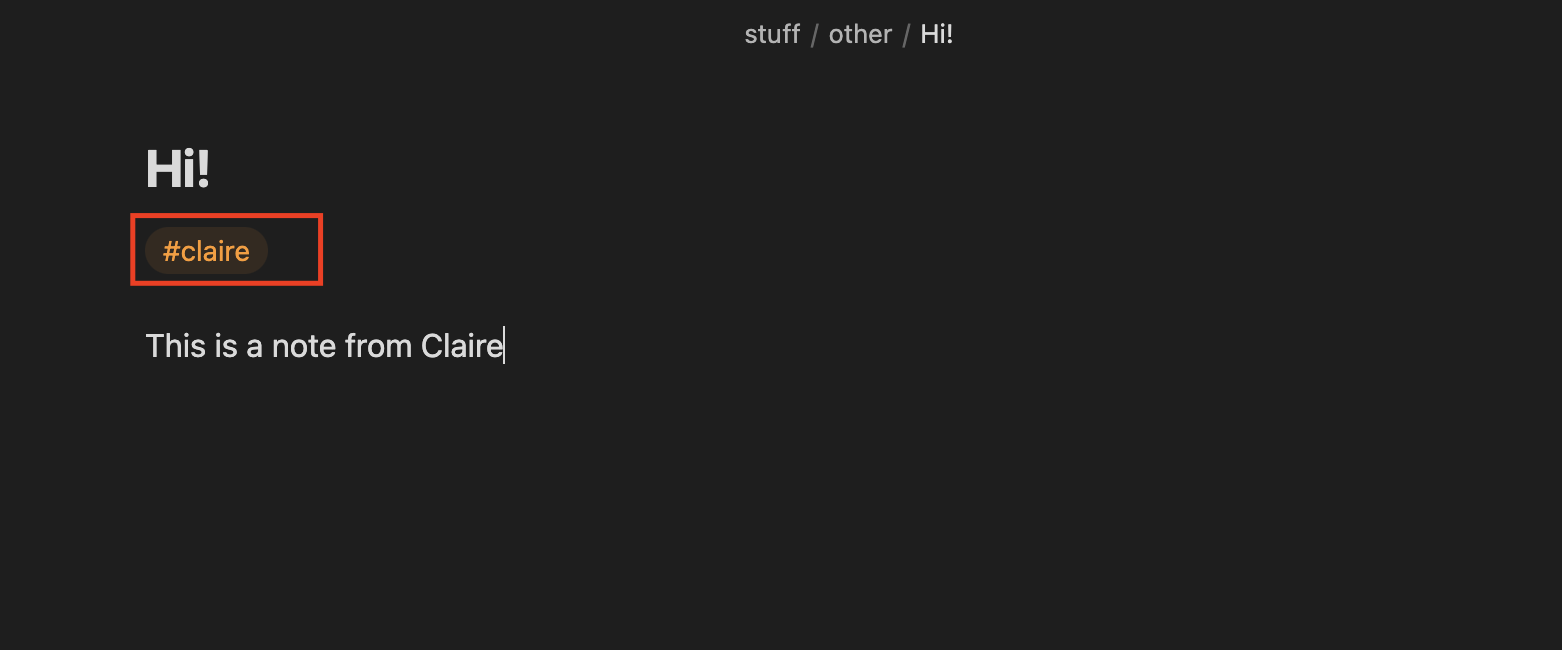
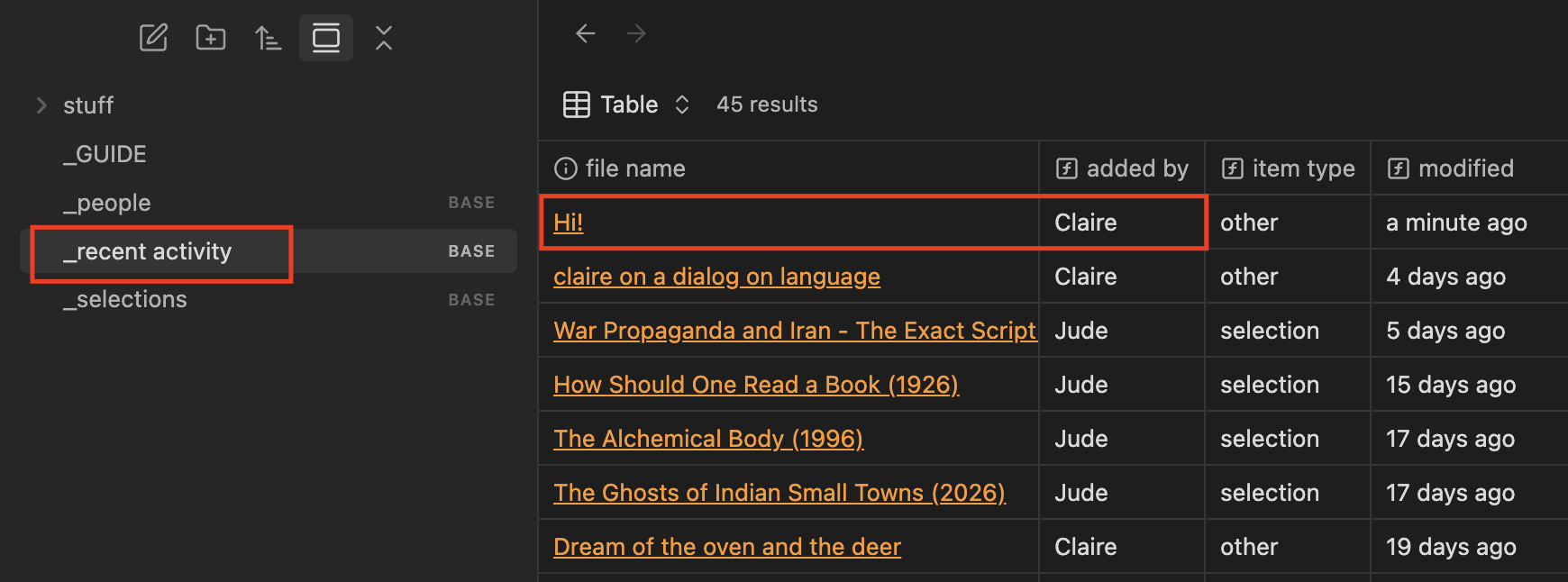
- Create a new Bases file in Obsidian (right click File explorer > New Base)
- Name the Base
_recent_activity - Configure the Base as below
Add a formula property called "added by" (Properties > Add Formula)
Paste this formula, replacing the names to convert detected tags into display names. You can continue nesting any additional names you expect in the if statement.
if(file.tags.contains("jude"), "Jude", if(file.tags.contains("claire"), "Claire", ""))

Note on formula validation: if you're new to Obsidian Bases formulas and not sure of the syntax, I recommend pasting the docs URL into an LLM and asking it how to achieve what you want to do.
Add a formula property called "modified" (Properties > Add Formula)
Make a human-readable modified at column. Use Obsidian's native .relative() method
file.mtime.relative()
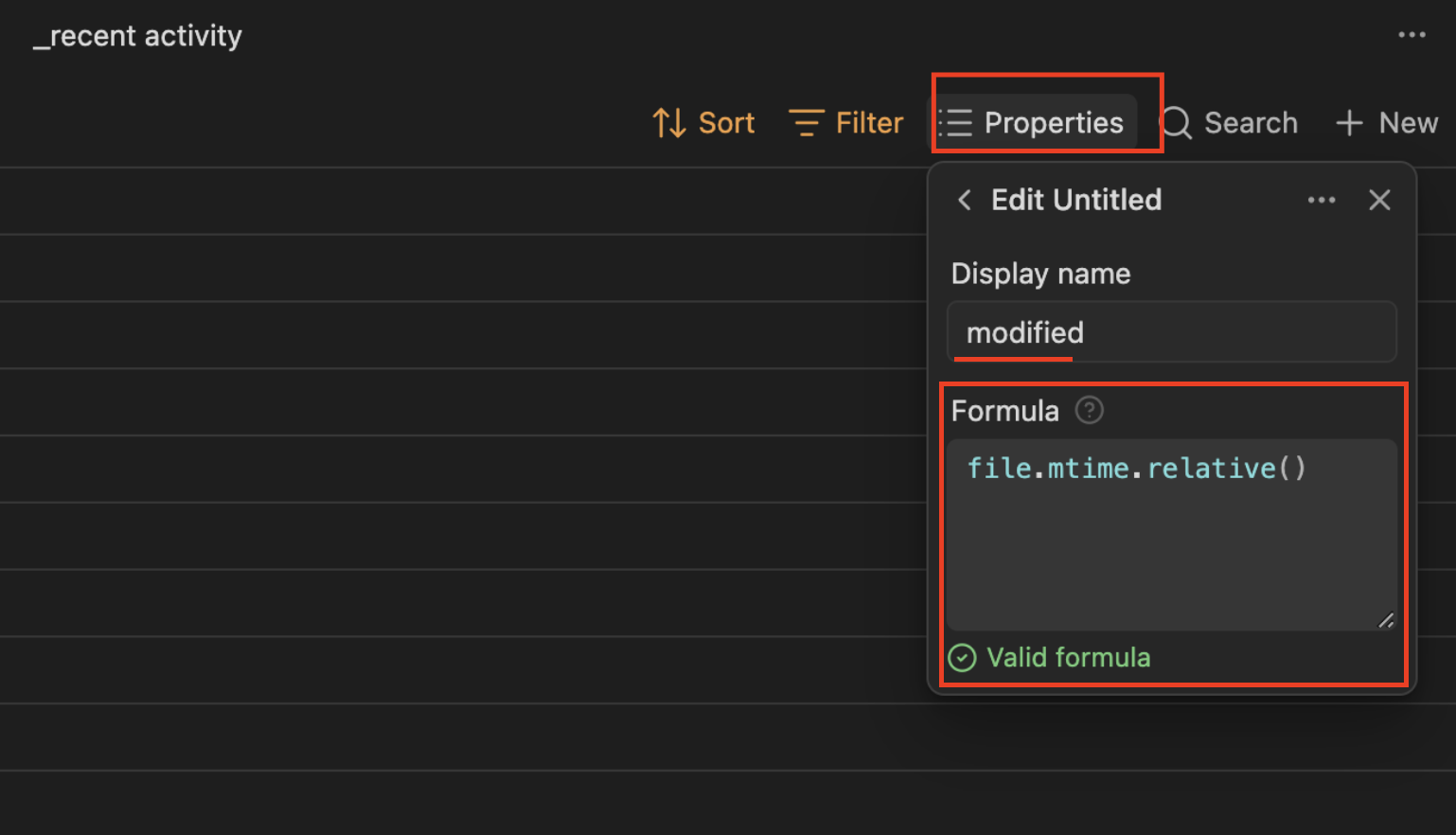
Sort by "modified time"
To float recent activity to the top, sort by "modified time" > "New to Old"

Show relavant properties
Ensure Properties file name, added by, modified are selected in your view. You can drag the columns to desired order

6. Invite your friends
Invite your friends to join your shared vault by privately sharing the connection instructions in Step 4
7. (Optional) Create backups
If you'd like, automate local backups (unencrypted) of your shared Vault. I recommend the Obsidian plugin Local Backup.
This is especially useful in case everyone forgets the encryption password and gets locked out of your precious space. It also enables you to migrate from Dropbox anytime.
8. (Optional) Go crazy
The world is really your oyster in terms of how you want to use your shared space. Play around with Bases views, folder filters, note properties and formulas to create custom experiences.
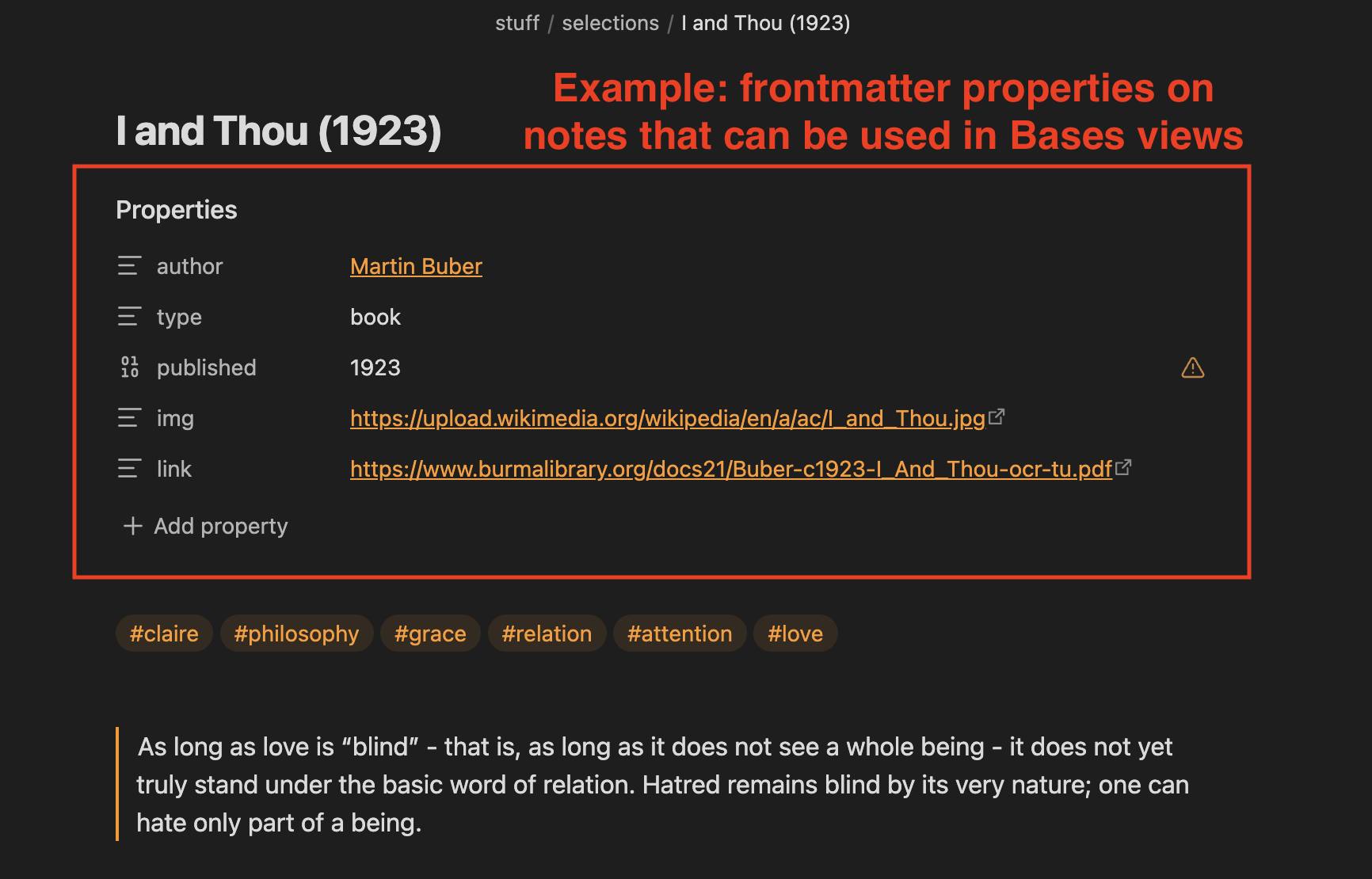
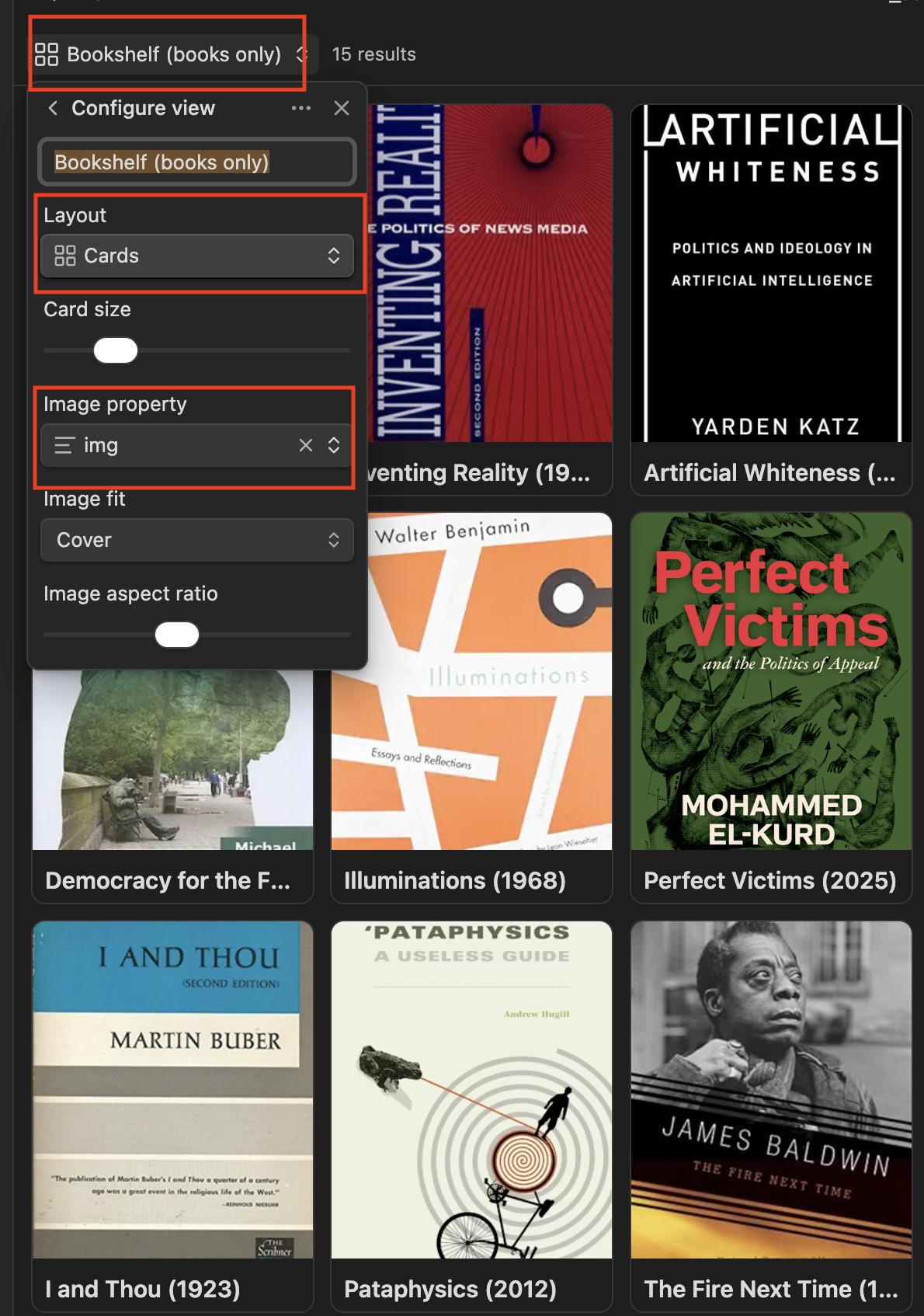
For example, we organized our vault into "selections" (artifacts of interest), "people" (authors, thinkers, etc), and "other stuff" (random thoughts and commentary). I love that we can wikilink references to eachother's notes with [[]] syntax. We use frontmatter note properties to create custom data attributes such as images that can be used in additional Bases views (like the virtual bookshelf cards view).
The "Card" bases view allows displaying cover images
How secure is it?
I reviewed the Remotely Sync plugin code and rate its security as Moderate (3/5): files are encrypted locally with AES‑GCM (key derivation uses PBKDF2 at 20,000 iterations) before uploading to Dropbox, but the encryption password is only weakly protected on your device and not stored using Obsidian’s new SecretStorage feature (yet). This means anyone with access to your filesystem could potentially decrypt your notes remotely if they have access your Dropbox account. SecretStorage support in the plugin has been requested but is not yet implemented.
What about edit conflicts?
It's true that with this method you'll need to be careful about not stepping on eachother's toes. It's not much of a problem for us since we live in opposite waking hours, and tend to make our own notes with links for dialogue. But sync is pretty fast depending on your plugin config so it shouldn't be too much of a problem.
If you'd like hyper realtime collaboration to prevent conflicts, check out this other tutorial for Obsidian + Raspberry Pi + CouchDB + LiveSync plugin setup, or consider upgrading to Obsidian Team Sync which has merge conflict support and version history.
*Note on my cheapness
I'm cheap, but a huge supporter of Obsidian and do already pay for Obsidian Sync for personal use. I'm also a Catalyst donor, plugin developer, and annoying Obsidian evangelist.
Obsidian is, in my view, everything software should be: excellently engineered, anti vendor-lock, privacy focused, free for what shouldn't be charged, a great deal for what you pay for, a useful tool for getting real-world shit done, 100% user-supported and loved by a generous community. Consider supporting Obsidian!
